The Run Agent: from prompt to model settings to code
Tell the Run Agent what you need, watch its proposal land on the workspace's own controls, change what you like, and copy the same run as Python, TypeScript or curl.
The Run Agent is a chat box in the workspace, between your photo and the Run button. You say what you want from the photo in your own words. It looks at the photo, picks a model and its settings, and sets them on the workspace for you. You check them and press Run.
This guide follows one photo through it, a wedding reception shot at ISO 12800 that is to be printed at 8×10, and ends with the same run as code.
What it can and can’t do
It can:
- look at your photo, the whole of it reduced and any part of it up close at full detail. That is how it judges grain, blur and faces.
- read the models, their settings and prices, and how many credits your account has.
- set the model, its settings and the region on the workspace.
It can’t run anything. It never presses Run and never spends a credit: you do both. It only helps with your photos in CraterView.ai, and says so in a sentence if you ask it anything else.
1 — Choose the photo, then ask
Drop a photo on the workspace, or press Choose file, and write in the box under it. Say what the photo is for rather than which settings you want: the size of the print, the screen it goes on, what bothers you about it. Enter sends and Shift+Enter starts a new line. An answer usually takes 10 to 20 seconds.
The photo uploads as soon as you choose it, so the agent can look at it. Nothing runs until you press Run.
We asked:
This is from a wedding reception, shot at ISO 12800. I’d like to print the couple cutting the cake at 8 by 10 inches. What would you use?
2 — The proposal lands on the controls
The agent chose Enhance at 2× with binning at 2x2, on a tall region round the couple. It gave its reasons in a few lines. The photo is very grainy at ISO 12800, and it had looked at the bride’s face up close to see how grainy. Binning averages the grain away before the enlarging. The region has the 4:5 shape of an 8×10 print. The result will be about 2,765 × 3,456 pixels, a little over 300 pixels per inch at 8×10. And the run costs 1 credit, or runs free on the community queue when the balance is 0.
Under the answer the panel says The workspace is set. Check it, then press Run. Every part of the proposal is now on the page’s own controls:
- Model has Enhance selected.
- Model settings shows scale 2 and binning 2x2.
- The window on the photo frames the region. Drag it to move it, or pull a corner to resize it.
- The line beside Run says what a run costs.
The workspace after the first answer. Photograph by John Trainor, CC BY 2.0, via Wikimedia Commons.
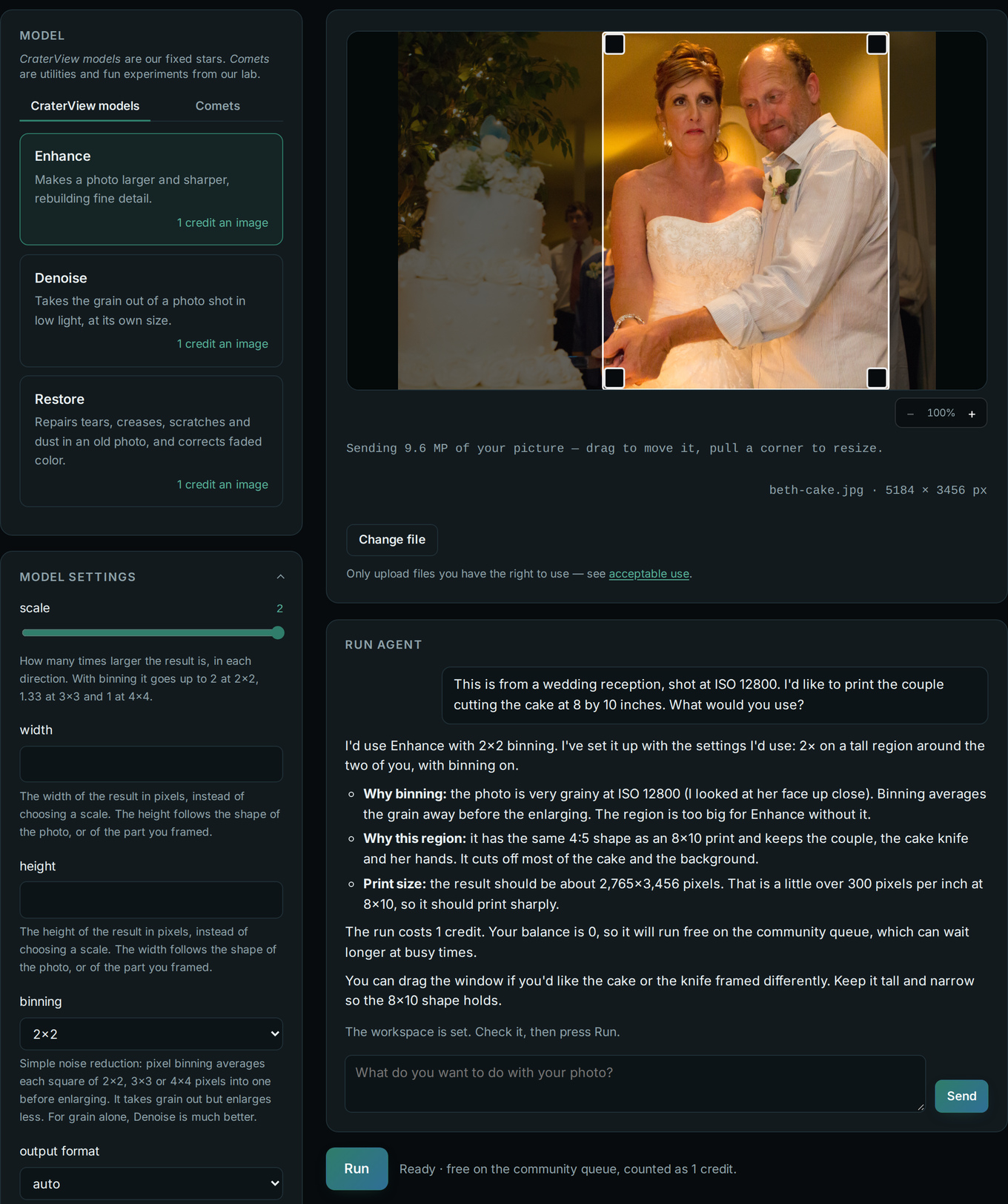
What Run sends is what the controls show, and nothing else. If a proposal can’t run as it stands, the panel says Run can’t go yet and what is in the way.
3 — Change anything, then ask again
The controls are yours. Each message you send carries the workspace as it is at that moment: the photo, the model, every setting and the window. So you can change a setting by hand and ask about your own change.
We set binning to 3x3 to take out more grain. scale dropped to 1.33 with it, since that is the most 3x3 allows, as the scale’s hint says. Then we asked:
I’ve set binning to 3x3 to take out more of the grain. Is that still enough for the 8x10?
It answered:
It will print, but it’s a step down. With 3×3 binning the result is about 1,229×1,536 pixels, which is only about 150 pixels per inch at 8×10. That’s the low end for a print, and it will look softer, especially close up. At 2×2 you get about 2,765×3,456 pixels, which is over 300 pixels per inch.
I’d keep 2×2. […] Do you want me to put it back to 2×2?
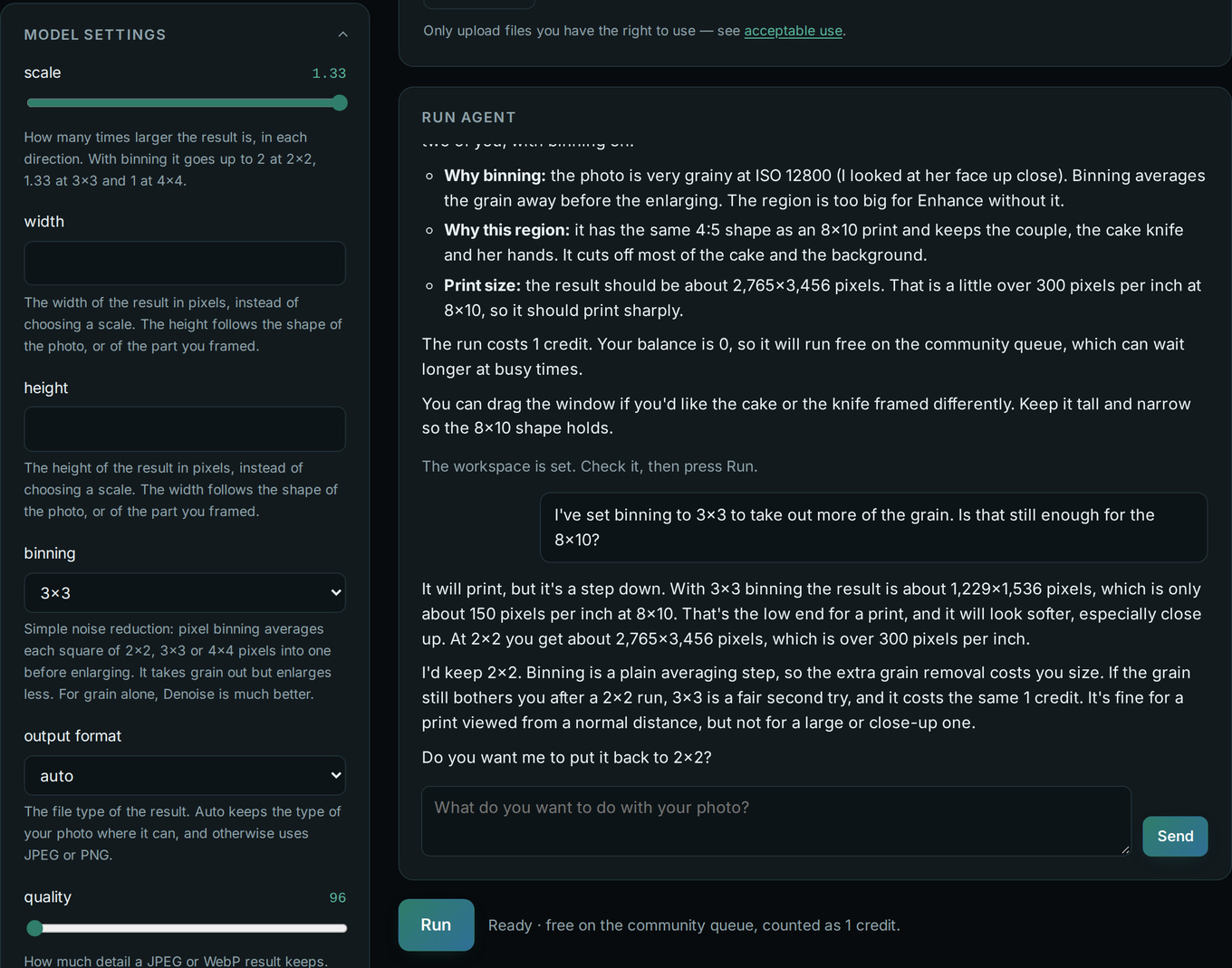
Here it asked before setting 2x2 back. When it does set something again, the new proposal replaces the old one on the controls.
4 — The same run, as code
At the foot of the workspace, Equivalent API calls shows what Run would send, in curl, Python or TypeScript. It follows the controls: when the agent sets them, or you change them, the code changes with them. So a conversation is also a way to write a call. Describe the job, check it on your photo, and copy the code.
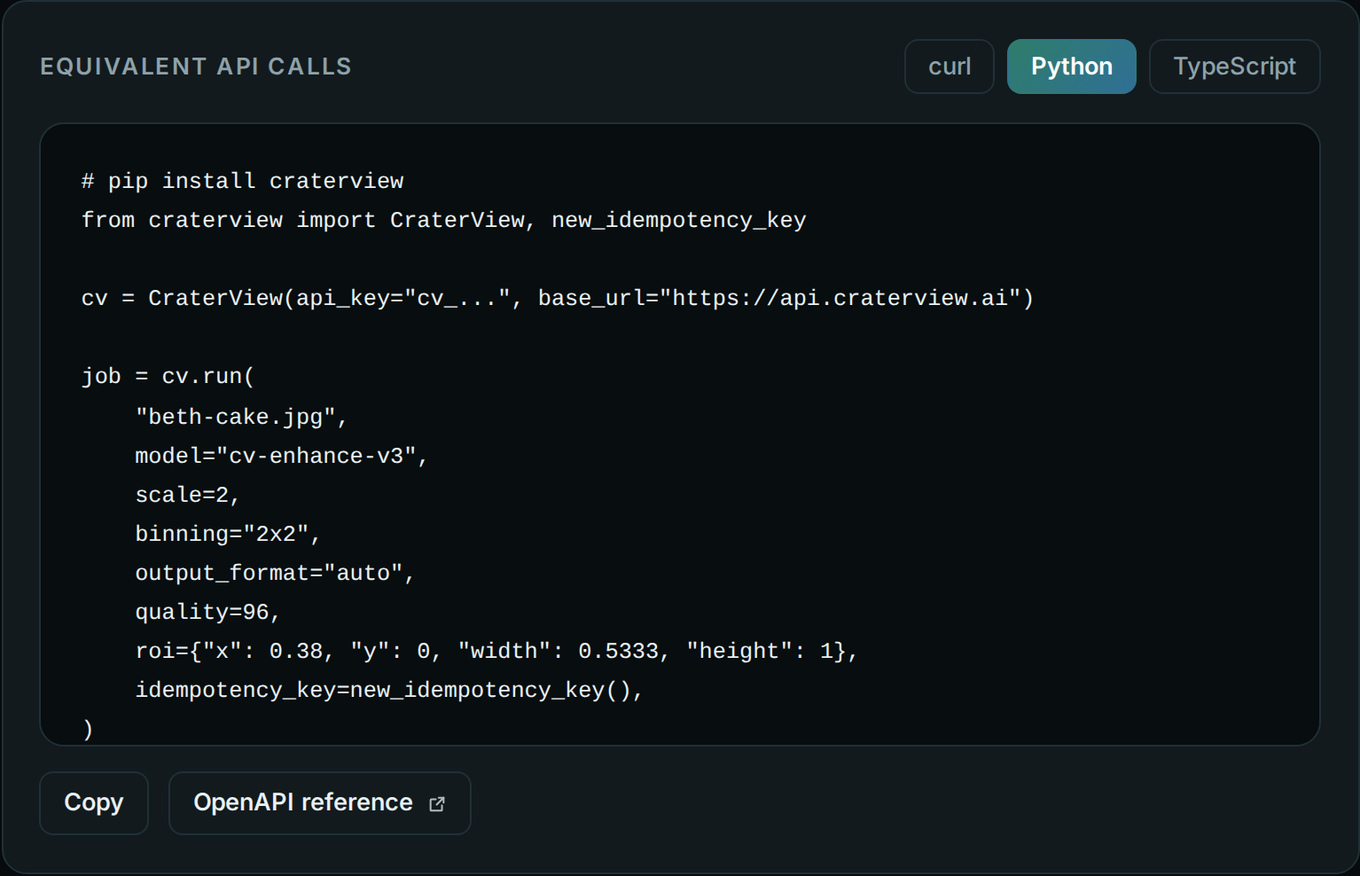
The Python for the first proposal:
# pip install craterview
from craterview import CraterView, new_idempotency_key

cv = CraterView(api_key="cv_...", base_url="https://api.craterview.ai")

job = cv.run(
    "beth-cake.jpg",
    model="cv-enhance-v3",
    scale=2,
    binning="2x2",
    output_format="auto",
    quality=96,
    roi={"x": 0.38, "y": 0, "width": 0.5333, "height": 1},
    idempotency_key=new_idempotency_key(),
)

job.save("result.jpg")
Line by line:
modelis the model’s id.cv-enhance-v3is Enhance.scaleandbinningare the agent’s two settings.output_formatandqualityare the panel’s defaults, written out.roiis the window: its top-left corner (x,y), itswidthand itsheight, as fractions of the photo. This one starts 38% of the way across, is a little over half the photo wide, and runs its full height. Because they are fractions, the sameroiframes the same part of any photo of the same shape, such as a series shot from a tripod.idempotency_keymakes a retry safe. If the connection drops and the call is sent again, you get the first job back, not a second job and a second charge.cv.runuploads the file, submits the job and waits for it.job.savewrites the result.
The API Keys panel under the code holds your account’s key. Keep it in your shell’s environment rather than in the file:
export CV_API_KEY=cv_...
import os
from craterview import CraterView

cv = CraterView(api_key=os.environ["CV_API_KEY"])
A run from code costs the same as a press of Run. The TypeScript tab is the same call for
npm install craterview. The curl tab is the three requests underneath: ask for somewhere
to put the file, upload it, submit the job. Your first API call
walks through them.
Good to know
A conversation lasts an hour. It is deleted an hour after your last message, and reloading the page starts a new one. If you write to one that has ended, the panel starts a new one with your message.
There is a daily number of messages. It is larger once you are signed in. The panel tells you when three or fewer are left.
A proposal belongs to its photo. If you choose another photo while an answer is on its way, the panel doesn’t set that answer’s settings. Ask again about the new photo.
What the agent receives. Your messages, the photo with its name, type and size, the model and settings on the workspace, and your account’s credits. The privacy policy has the details.
Next
Enhance and binning shows what each binning square takes out, of grain and of fine detail. To have your own assistant do the work instead, the agent skills and Connect an assistant set that up. In the workspace, the Connect your own assistant panel above the code is where to begin.
Try it on your own file
No sign-up and no card — a workspace opens in your browser the moment you arrive.
Open Web AppMore guides

