Bit depth, colour profiles and file formats
Bits per channel, transfer curves, colour profiles and phone HDR, what each format holds, when not to use auto, and what to keep for the web, print, an archive and science.
Two properties decide what an image file can still be used for once it is saved: how many levels each channel holds, and which colours those levels stand for. Neither shows until something goes wrong. A sky bands after an edit, or a red goes dull when the file is re-saved. This page covers both: what the terms mean, how phones store HDR, what each format can carry, what CraterView does with each on the way through and which output format to ask for, and what to keep for the web, print, an archive and scientific work.
Bit depth
Depth is counted per channel. An 8-bit RGB image holds 256 levels in each of red, green and blue. “24-bit colour” and “48-bit colour” are the same 8 and 16 bits counted across all three.
| Bits per channel | Levels per channel | Where you meet it |
|---|---|---|
| 8 | 256 | JPEG, WebP, most PNGs, an iPhone’s HEIC; what an ordinary display shows |
| 10 | 1,024 | HEIF and AVIF from many cameras; HDR photographs and video |
| 12–14 | 4,096–16,384 | Camera raw files |
| 16 | 65,536 | Scanner TIFFs, 16-bit PNGs, exports from raw editors |
| 32, floating point | — | HDR merges, stacked astronomical frames, instrument data |
Eight bits is enough to show a finished image, and too few to keep editing one. The levels are spaced along a transfer curve that puts them where the eye can tell them apart, so a finished 8-bit picture looks smooth on an ordinary screen. Editing uses levels up. Stretch the darkest quarter of an 8-bit channel, codes 0–63, across the whole range, and 64 levels have to cover 256 codes. That leaves a step of four between neighbours, which a smooth sky or a shadow shows as bands. The same stretch on a 16-bit channel has 16,384 levels to spread. Edit at 16 bits and reduce to 8 once, at the end.
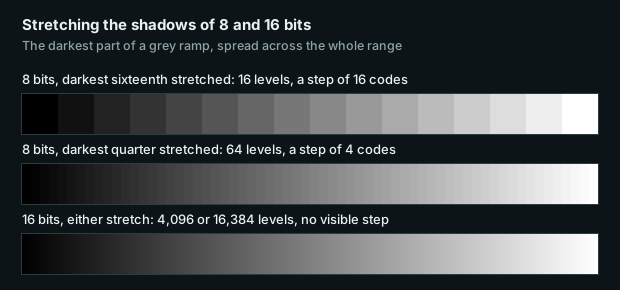
Each strip is the darkest part of a grey ramp spread across the whole range, the way an edit lifts the shadows. From 8 bits the steps show. From 16 bits there are more levels than the screen can display, so none do.
Depth records what was captured, and cannot add to it. An 8-bit JPEG saved as a 16-bit PNG is still 256 levels in a 65,536-level container. The way to check is to count the distinct values a file actually holds, which the script under Checking a file below does.
Values are encoded, not proportional to light. A transfer curve spends more codes on the shadows, where the eye discriminates finely, and fewer on the highlights. It may be sRGB’s curve, a plain gamma of 1.8 or 2.2, or HDR’s PQ or HLG. Linear data, straight off a sensor or an instrument, has no such curve. That is why it needs 16 bits or floating point to look as smooth as an 8-bit encoded picture, and why it looks almost black when shown as it is.
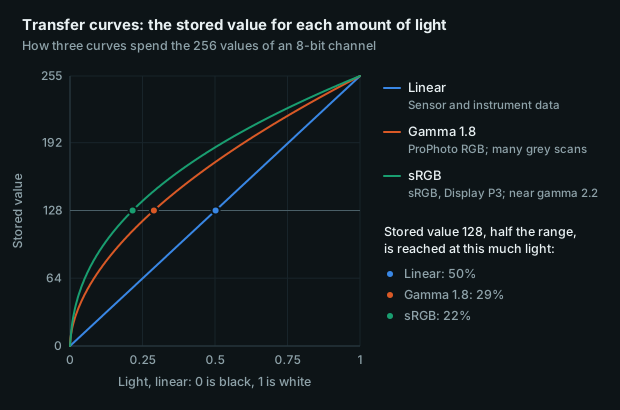
Half the stored range, value 128, covers the darkest 22% of the light in sRGB, 29% at gamma 1.8, and 50% in linear data. A curve gives the shadows more of the values.
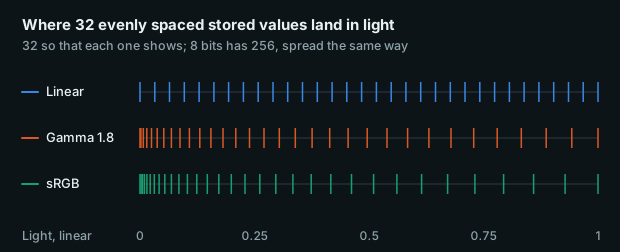
The same values placed on a scale of light. A curve crowds them into the shadows, where the eye tells neighbouring tones apart most easily. Linear data spaces them evenly, which leaves the shadows short of levels.
Colour profiles
A pixel value names a position inside a colour space, not a colour. (255, 0, 0) means “the most saturated red this space has”, and spaces disagree about how red that is. Three things fix a space: the chromaticities of its red, green and blue primaries, its white point, and its transfer curve. A colour profile is the file stating them. There are two ways to state them:
- An ICC profile. Every format here can embed one: JPEG in an
APP2segment, PNG in aniCCPchunk, WebP in anICCPchunk, TIFF in tag 34675, and HEIF and AVIF in acolrbox. - CICP code points (ITU-T H.273), stored in an
nclxcolrbox. These are numbered codes for the primaries, the transfer and the matrix. A HEIF may carry them instead of an ICC profile, and an AVIF usually does.
No profile means sRGB. Browsers, operating systems and CraterView all read an untagged file as sRGB. That is right for an sRGB file and wrong for anything else. A Display P3 photograph with its profile stripped is drawn as though its numbers were sRGB’s, and comes out duller: the same numbers, read against narrower primaries.
| Space | Gamut | Transfer | Where you meet it |
|---|---|---|---|
| sRGB | The reference: Rec. 709 primaries, D65 white | sRGB curve, about 2.2 | The web; what “untagged” means |
| Display P3 | Wider in reds and greens | sRGB curve | iPhones since 2016, Macs, wide-gamut displays |
| Adobe RGB (1998) | Wider in greens and cyans | Gamma 2.2 | Cameras set to it; print work |
| ProPhoto RGB | Wider than any display; two primaries are not real colours | Gamma 1.8, D50 white | Raw editors’ working space |
| Rec. 2020 | Wider still | PQ or HLG, for HDR | HDR photographs and video |
| Greyscale | One channel | A curve alone, often gamma 2.2 or 1.8 | Scanners, black-and-white exports |
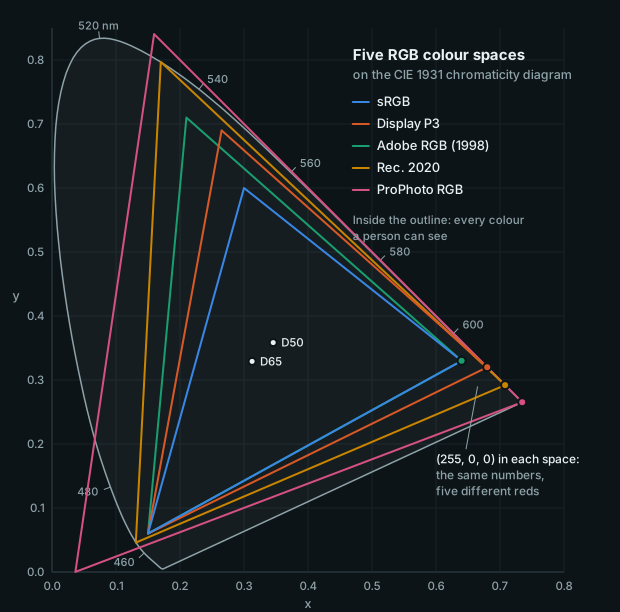
The outline holds every colour a person can see. Each triangle joins a space’s three primaries, and its red corner is what (255, 0, 0) means in that space. Two ProPhoto RGB corners fall outside the outline, so some of its values name no colour at all. Every space here has the D65 white except ProPhoto RGB, whose white is D50.
A wider gamut spreads the same levels over a larger range. At 8 bits, each step in ProPhoto RGB is much coarser than in sRGB and banding comes early, so a wide working space wants 16 bits. Display P3 is close enough to sRGB that 8 bits holds a finished picture well, which is why an 8-bit Display P3 JPEG is an ordinary file.
HDR photographs from phones
“HDR” means two different things on a phone, and only one of them changes the file.
HDR in the camera — Smart HDR on an iPhone, HDR+ on a Pixel — merges several exposures into one picture whose shadows and highlights both fit an ordinary screen. That is tone mapping, done before the file is written. On its own it produces an ordinary SDR picture.
HDR on the screen keeps light brighter than diffuse white, the brightness of a white page. A display with headroom can then show a sunlit sky or a lamp brighter than white. There are two ways to store it:
- A gain map. The file holds an ordinary SDR picture and, beside it, a greyscale image saying how much brighter each region should be on a screen that can show it. A screen without HDR, and any software that does not read the map, shows the SDR picture as it is. iPhones have stored a gain map with their photographs for several years: first in a form of Apple’s own, and since iOS 18 in the ISO 21496-1 form Apple calls Adaptive HDR. The SDR picture in an iPhone HEIC is 8-bit Display P3. Android 14 introduced Ultra HDR, a JPEG carrying a gain map, and Android 15 writes the ISO form into it as well.
- An HDR transfer curve. A PQ picture (SMPTE ST 2084) encodes absolute luminance up to 10,000 cd/m², and an HLG picture encodes it relative to the display. Both need at least 10 bits and usually come with Rec. 2020 primaries. There is no SDR picture inside, so a viewer without HDR has to tone-map one. Cameras and editors write these as HEIF or AVIF.
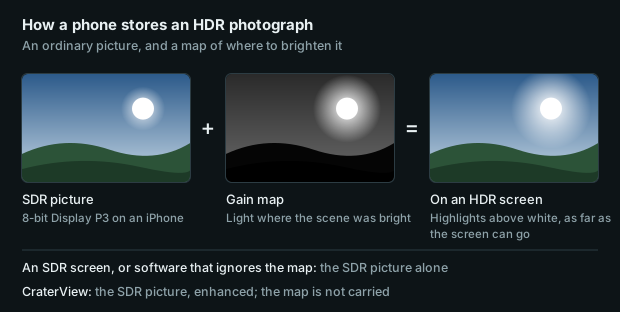
An illustration of the idea: the picture and the map are drawn, not decoded from a file.
Every CraterView result is SDR. PNG, JPEG and WebP results carry no gain map and no HDR curve.
- From a gain-map photograph, CraterView reads the SDR picture, in its own colour space, and returns it enhanced. The map is not carried, so the result looks like the photograph with HDR display turned off. That is the fair comparison: on an iPhone, turn off Settings › Photos › View Full HDR, and the Photos app shows every picture that way.
- A PQ or HLG picture is decoded through its curve and brought into SDR in its own primaries. The highlights above diffuse white are rolled off rather than cut. The curve is fitted to the brightest part of each picture, and diffuse white settles below the top of the range so the highlights have room above it. For a picture whose brightest part is 1,000 cd/m², white lands at 0.78 of full light, stored as 229 of 255.
- Keep the original of any photograph whose HDR rendition matters. A result cannot be turned back into one.
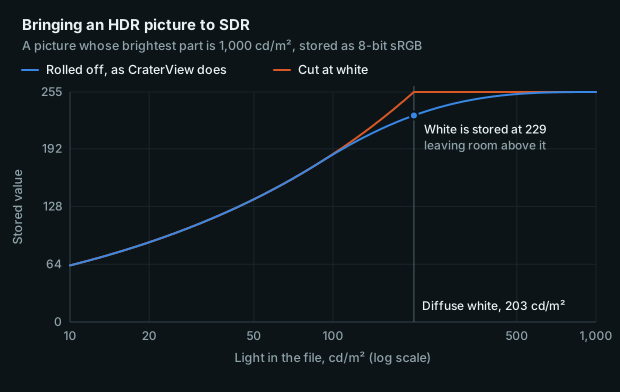
Computed with the curve CraterView applies. Below about 100 cd/m² the two agree. Cut at white, everything brighter than 203 cd/m² is stored as 255, and the gradations of a bright sky are lost. Rolled off, white is stored at 229 and the highlights keep their differences. A picture with a different peak gets a different curve.
What each format holds
| Format | Bits per channel | Compression | Transparency |
|---|---|---|---|
| JPEG | 8; the standard also allows 12, which little software reads | Lossy; colour usually at half resolution (4:2:0) | No |
| PNG | 1–16 | Lossless | Yes |
| WebP | 8 | Lossy, colour at half resolution; or lossless | Yes |
| HEIC / HEIF | 8 from an iPhone, 10 from many cameras; up to 16 in the format | Lossy | Yes |
| TIFF | 1–32, integer or floating point | None; lossless LZW, ZIP or PackBits; or JPEG | Yes |
| AVIF | 8, 10 or 12 | Lossy or lossless | Yes |
| JPEG XL | Up to 16 integer, or 32 floating point | Lossy, lossless, or a lossless repack of a JPEG | Yes |
| Camera raw, DNG | 12–14, one sensor colour per pixel | Varies | No |
| FITS | 8–64, integer or floating point | Usually none | No |
| Format | States its colour with | Shown by browsers | CraterView |
|---|---|---|---|
| JPEG | ICC | All | Reads and writes |
| PNG | ICC | All | Reads and writes |
| WebP | ICC | All current | Reads and writes |
| HEIC / HEIF | ICC or CICP; may carry a gain map | Safari | Reads; returns JPEG or PNG |
| TIFF | ICC | Safari | Reads; returns PNG |
| AVIF | ICC or CICP | All current | Does not read |
| JPEG XL | ICC or a built-in description | Safari; arriving in Chrome and Firefox | Does not read |
| Camera raw, DNG | The camera’s own colour, not yet a colour space | None | Does not read |
| FITS | Nothing: the values are data | None | Does not read |
What CraterView does with them
Every image model returns its result at the input’s depth and in the input’s colour space,
as far as the output format can hold them. Each model’s published output_format description
says so. Enhance (cv-enhance-v3) also hands the model every level the file holds: all 65,536
of a 16-bit scan and all 1,024 of a 10-bit HEIF, rather than an 8-bit reduction of them.
The details:
- Depth.
pngholds 16 bits per channel.jpegandwebphold 8, so a deeper picture asked for in either comes back as PNG at its own depth. PNG has no 10-bit form, so a 10-bit HEIF is written at 16 with all of its 1,024 levels, and marks 10 bits as significant. - Colour space. The ICC profile, or a HEIF’s CICP box, is read as primaries and a curve. The model works on sRGB-encoded values, and the result is converted back into your primaries and tagged with them. A Display P3 photograph comes back in Display P3, and an Adobe RGB scan in Adobe RGB. Where a file carries both, the ICC profile wins. A HEIF described by its CICP box alone has no profile bytes to hand back, so its result carries a profile written from the box’s primaries and curve. That profile’s description reads “CraterView”, not the name of the space.
- Gamut. Detail is rebuilt within sRGB’s range of colours. A colour outside that range, such as the most saturated reds and greens a Display P3, Adobe RGB or Rec. 2020 file can hold, comes back clipped to the edge of sRGB, as a colour-managed conversion to sRGB clips it. Everything inside sRGB comes back where it was. On most photographs, that is all or nearly all of the frame.
- Untagged files are read as sRGB and come back untagged.
- Greyscale comes back as RGB, three equal channels at the file’s own depth, in sRGB. The tones are converted through the grey file’s own profile; the profile itself is not carried.
- CMYK is converted to RGB without its press profile, so convert it to RGB in your editor first, where the profile is used.
- HDR comes back as SDR. A gain map is not carried, and a PQ or HLG picture has its highlights rolled off, as HDR photographs from phones above describes.
- Transparency is kept in PNG and WebP. A picture with an alpha channel asked for as
jpegcomes back as a PNG, because JPEG has no alpha channel — even one that is opaque everywhere. - Metadata. A result carries its colour profile and nothing else: no EXIF, XMP or IPTC, and so no capture date, camera or location. A rotation tag is applied to the pixels before anything runs, so the result is upright without one.
- Encoding. JPEG results keep colour at full resolution. WebP results store it at half,
which is how that format works.
qualityis high by default, and its lowest value is still high: it is set to keep the rebuilt detail, not to serve the file. - TIFF is read at 8 or 16 bits, RGB or greyscale, interleaved, and either uncompressed or
compressed with LZW, ZIP or PackBits. A multi-page TIFF is read as its first page. The job
is refused before any work, with
unsupported_tiff, if the TIFF uses any of these: floating-point, 32-bit or signed samples; 16-bit CMYK or Lab; separate colour planes; or premultiplied transparency. - Other formats are refused before any work, whatever type the file was uploaded as. One
the platform can read and no model takes, such as AVIF, GIF or BMP, fails with
format_not_accepted, which names the formats the model takes. One it cannot read at all, such as JPEG XL, fails withunreadable_image. An upload asked for under a type no model takes is refused before it is sent. Convert the file to a format the model takes first.
Choosing output_format
Every model that returns an image takes output_format: auto, png, jpeg or webp. In the
app it is one of the model’s settings; through the API it goes in params with the rest.
auto, the default, prefers the format you sent, except for the two formats CraterView reads
and never writes. Whatever is asked for or sent is a preference: where that format cannot hold
the picture whole — its alpha channel, its depth or its size — the result comes back as PNG, and
its content type says so.
| You send | auto returns |
Bits per channel |
|---|---|---|
| PNG | PNG | 16 if it was 16, otherwise 8 |
| TIFF | PNG | 16 if it was 16, otherwise 8 |
| JPEG | JPEG | 8 |
| WebP | WebP | 8 |
| HEIC / HEIF | JPEG, or PNG if it has an alpha channel or more than 8 bits | 8 as JPEG, its own depth as PNG |
auto is right when the result should be the same kind of file you sent. When the result has
a different job, name the format:
| When | auto returns |
Ask for |
|---|---|---|
| A lossless WebP: a screenshot, a diagram, a map | A lossy WebP, colour at half resolution | png |
| Text, line art or fine coloured edges, sent as WebP | Colour at half resolution | png or jpeg |
| A result you will edit, or send to another model | A lossy file, if you sent one | png |
| A large 8-bit PNG or TIFF you only need to look at or share | A PNG, often very large | jpeg |
pngnever adds depth. An 8-bit input comes back as an 8-bit PNG: no new levels, but no further lossy generation either. A deeper input comes back at its own depth.- Each lossy step costs a little. JPEG and WebP results are written at a high quality, but a chain such as Enhance, then Restore, then your own edit still loses something at every JPEG or WebP along the way. A PNG between the steps costs bytes and nothing else.
- PNG costs bytes. A 48-megapixel result is 288 MB of 16-bit samples before compression, and lossless compression saves far less on a photograph than on a diagram. A picture deeper than 8 bits comes back as PNG whatever is asked for, because JPEG and WebP hold 8 bits; to get a small file of it, convert it to 8 bits before sending it.
- Transparency. Kept whatever you ask for: an alpha channel stays in a PNG or a WebP, and
comes back as a PNG where you asked for
jpeg, which has none. - Size. WebP holds at most 16,383 pixels a side and JPEG 65,500. A result wider or taller than the format asked for can hold comes back as PNG.
qualityapplies tojpegandwebp, and to nothing else.
Checking a file
ExifTool reads what a file declares:
exiftool -s -BitDepth -BitsPerSample -SignificantBits -BitDepthLuma -ProfileDescription -ColorPrimaries photo.png
- Depth is
BitDepthfor a PNG,BitsPerSamplefor a JPEG or TIFF, andBitDepthLumafor a HEIC. SignificantBitsappears on a PNG that holds fewer bits than its container. A result from a 10-bit HEIC is a 16-bit PNG that says 10 are significant.- Colour is
ProfileDescriptionfor an ICC profile, andColorPrimariesfor a HEIC’s CICP box, whereSMPTE EG 432-1is Display P3. If neither line appears, the file is untagged and is read as sRGB.
A header states a depth; it does not prove the levels are there. To count them in a PNG:
# pip install pypng numpy
import sys
import numpy as np
import png

for path in sys.argv[1:]:
    width, height, rows, info = png.Reader(filename=path).read()
    levels = np.unique(np.vstack([np.asarray(row) for row in rows])).size
    print(f"{path}: {info['bitdepth']} bits per channel, {levels} distinct levels")
A 16-bit file with 256 distinct levels or fewer holds 8 bits of information in a 16-bit container. Some readers reduce 16-bit colour to 8 bits when they open a file, without saying so. Check depth with a reader that keeps it, or a correct result will look truncated.
Choosing for the use
| For | Keep | Send to CraterView | Ask for |
|---|---|---|---|
| The web | 8-bit sRGB or Display P3, as JPEG, WebP or AVIF | The best copy you have | png, then resize and encode for the page |
| A 16-bit master; a print file in the lab’s space | The master | png |
|
| An archive | The original, untouched; scans as 16-bit TIFF or PNG | The original or the scan | png |
| Scientific work | The data, in its own format | A stretched 16-bit TIFF or PNG | png |
The web
- 8 bits, in sRGB or tagged Display P3. Every current browser colour-manages a tagged image. A Display P3 picture shows its wider colours on a wide-gamut display and is mapped into sRGB on any other. Tag it, or convert it to sRGB, but never strip its profile.
- JPEG at quality 80–90, WebP, or AVIF. AVIF gives the smallest file at equal quality, and every current browser shows it. Only Safari shows HEIC or TIFF, so don’t serve either.
- Size to the display. Twice the CSS width covers high-density screens; anything more is bytes nobody sees.
- No metadata. A phone’s EXIF carries its location. CraterView results carry none.
- Encode results for delivery. A result is written to keep its detail: at a high quality, and from Enhance at up to four times the input’s width and height. Keep it as the master, and make web copies from it at the size and quality the page needs.
- Edit at 16 bits, and write the print file the way the lab asks. Consumer labs usually want an sRGB JPEG. Fine-art labs take Adobe RGB or a 16-bit TIFF, and publish the profiles of their printers so you can proof against them.
- 300 pixels per inch at the printed size is the usual target, and 150–200 is enough for a
large print viewed from further away. A 4032-pixel phone frame prints 13.4 inches wide at
300 ppi; at
scale: 2, Enhance makes it 26.9. The size each queue will return is published with the model.
A personal archive
- Keep the original exactly as it came, whether a camera JPEG, a phone HEIC, a scanner TIFF or a raw file. It is the only copy with the capture date, camera and location, and every re-save of a lossy file loses a little more.
- Scan deep. Save 16-bit TIFF or PNG, with the scanner’s profile embedded: 600 ppi for prints, and 2400–4000 for 35 mm film. A 16-bit scan sent to CraterView keeps its depth and comes back as a 16-bit PNG.
- Keep enhanced and restored copies as 16-bit PNG, beside the original and named after it.
Ask for
output_format: png, which also keeps the depth of a 10-bit HEIF. - Record what made each copy: the model, its parameters and the date. Put them in the file name or the library’s notes, because the result carries no metadata. Copy the capture date across with your photo library or ExifTool, but leave out the orientation tag. The result’s pixels are already upright, and the tag would turn them again.
- Use lossless, widely read containers for anything you make. Nearly everything has read TIFF and PNG for decades. HEIC and WebP are fine as originals, and a poor choice for a master you made.
Scientific work
- An enhanced image is not a measurement. Enhance rebuilds detail consistent with its input. It draws what is plausible at the new resolution, not what an instrument recorded. Use the result to look: for figures, for outreach, and for finding where to look next. Never use it for photometry, astrometry, counting or measuring sizes. Keep the data as the record, and label any enhanced figure with the model and its parameters.
- Send stretched integers. CraterView reads 8- and 16-bit integer images, and not FITS, raw or floating point. Apply your display stretch first (asinh, log or a histogram stretch), then export a 16-bit TIFF or PNG. The model works on the picture as a viewer would see it. Linear data sent as it is gets read as encoded values: almost black, with the detail packed into the lowest codes.
- Send grey frames untagged. A grey file’s own profile is not carried, so a frame tagged gamma 1.8 comes back on the sRGB curve. An untagged frame comes back in the encoding it went in with.
- A single-channel frame comes back as three equal channels at its own depth. Take any one of them to get a single-channel image back.
- Map false colour into sRGB yourself. A composite mapped into a wide gamut has its most saturated colours clipped to sRGB’s edge, as described above. Mapping into sRGB yourself lets you choose what happens at that edge.
- Record the version.
GET /v1/modelspublishes each model’sversion, which changes when its results change. Cite the model name and that version beside the figure.
From the API
output_format is a parameter like any other. With the Python client:
# pip install craterview
from craterview import CraterView

cv = CraterView(api_key="cv_...")

# A 16-bit scanner TIFF, enlarged 2x: back as a 16-bit PNG in the scan's own colour space.
job = cv.run("scan-16bit.tif", model="cv-enhance-v3", scale=2)
job.save("scan-16bit-2x.png")

# A 10-bit HEIF from a camera: back as a PNG that keeps all of its levels, which auto
# chooses because a JPEG holds 8 bits.
job = cv.run("camera-10bit.heif", model="cv-enhance-v3")
job.save("camera-10bit-4x.png")

# A lossless WebP screenshot: auto would return a lossy WebP.
job = cv.run("screenshot.webp", model="cv-enhance-v3", output_format="png")
job.save("screenshot-4x.png")
Over HTTP, it goes in params on the submit: {"scale": 2, "output_format": "png"}. For the
upload and polling under cv.run, see your first API call. The
formats each model returns, its size limits and its price are published by GET /v1/models
and shown in the app, so read them there rather than from this page.
Try it on your own file
No signup and no card — a workspace opens for your browser the moment you do.
Open Web AppMore guides

