Event photography: crops, prints and low light
A graduation, a marriage certificate, a 2004 wedding printed at 30 inches and a reception at ISO 12800: cropping in, enlarging for print, what Enhance and Denoise do with noise, and what they don't.
You were there for the moment, and the frame you got is not always the one the client asks for. They want one face out of a wide shot of the whole class, the certificate they hold up, a 30-inch print from a camera that made six megapixels, or the cake-cutting at ISO 12800. This guide takes real event photographs through Enhance for each of those, and the reception’s grain through Denoise as well. It shows where each recovers detail, where it draws detail that wasn’t there, and what Enhance doesn’t do at all.
Every result here is what Enhance or Denoise returned, with the settings in its caption. Drag a divider to compare, and zoom to inspect.


What Enhance does
Enhance enlarges a photograph by any factor from 1 to 4 and rebuilds fine detail at the new size. Set the enlargement with scale, or ask for an exact width or height in pixels. It doesn’t touch exposure, white balance or your grade: the colours and tones of the file you send are the colours and tones of the file you get back, at the bit depth you sent and in its colour profile. You can also frame the part of the picture to work on, and everything outside the frame is left out.
Two limits currently bound a run: how much of a picture it works on, and how large a result it returns. Today, on paid compute, the limits are 10.6 megapixels for the source and 170 megapixels for the enhanced output. On the free community queue the limits are 8.4 and 13 megapixels for source and enhanced result respectively. These limits are due to limits on what we can process as well as what we expect our applications and users can support.
Crop into the frame
The comparison at the top is from this graduation, a 4288 × 2848 frame of a hundred caps in the air and a dozen faces under them:
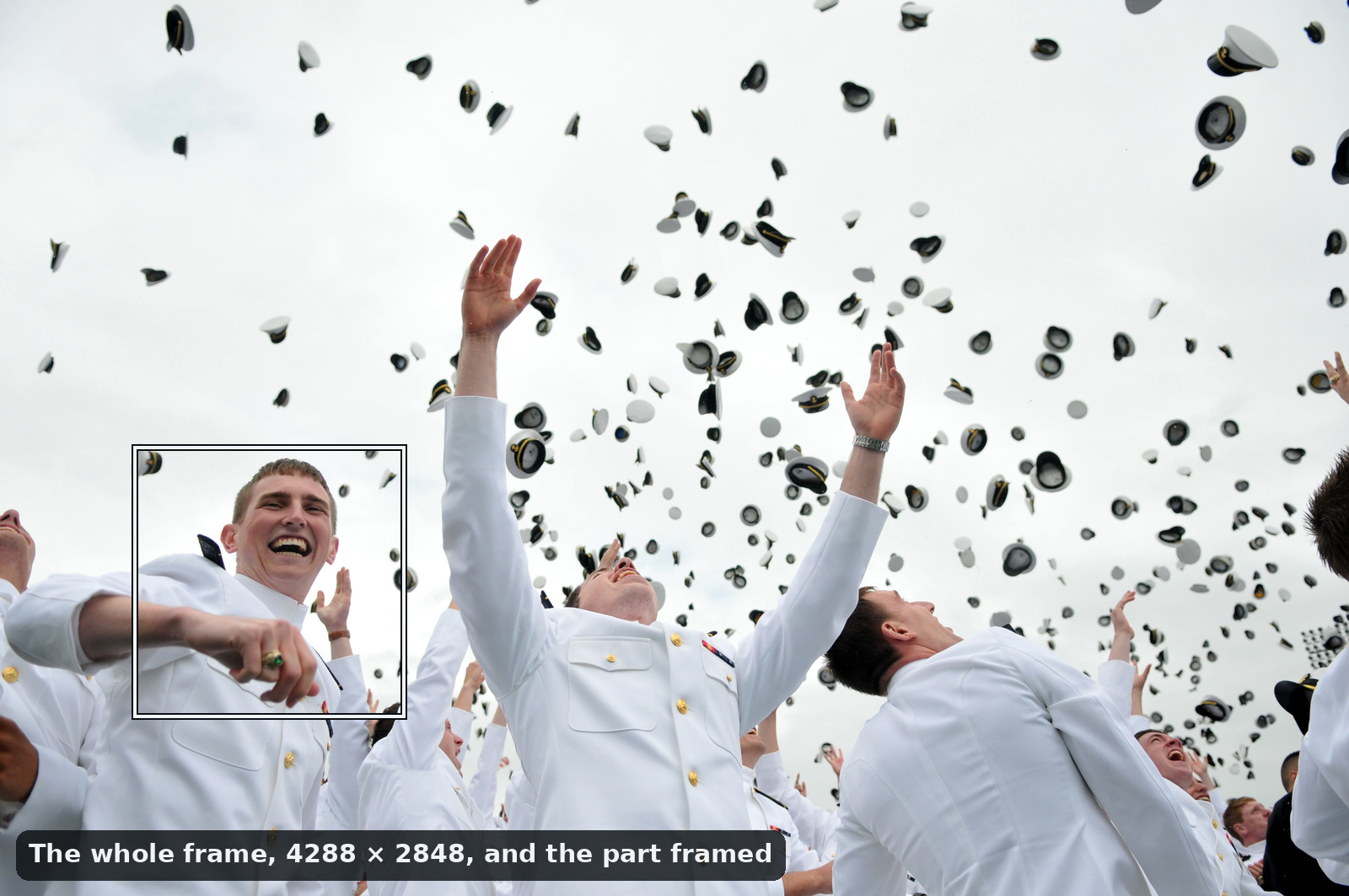
A client wants the laughing one, so frame the outlined part, a fifth of the frame wide and three tenths tall, and Enhance returns it four times larger, at 3428 × 3416.
In the crop of his face, the photograph holds the shape of everything: the brows, the lids, the creases of the grin. Enhance draws the fine things at the new size: separate hairs in his eyebrows, lashes, stubble, freckles across his nose. Look at the same crop lower down, though:
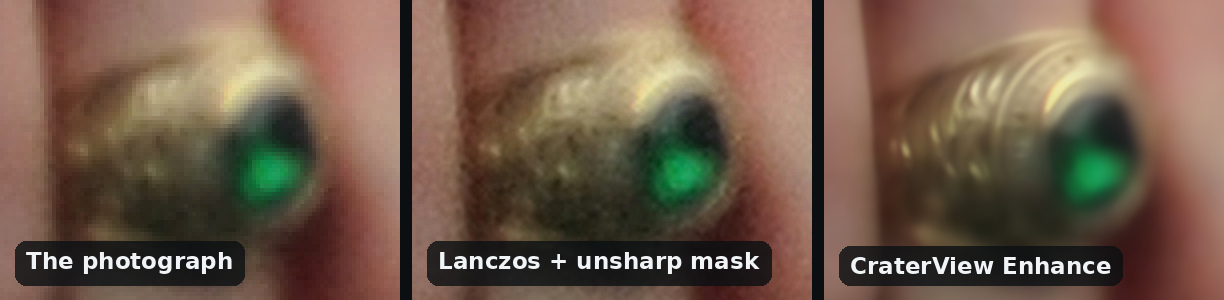
His fist was moving, and in the photograph his class ring is a gold blur with a green stone. Enhance draws a band of engraved lines on it. A class ring’s crest is specific, and the one drawn here is not it. Where the subject itself is blurred, by motion or by missed focus, Enhance draws detail onto the blur rather than removing it. Check anything a client will recognise as theirs: a ring, a crest, a medal, a tattoo.
Detail the photograph does hold is the other case, and writing is the best test of it, because you can check every letter:


Every word comes back as printed, down to the small print, and the coat of arms gains a crisp kangaroo, emu and shield and a scroll that now reads AUSTRALIA.
Enlarge for print
A print needs pixels for its size at the resolution it will be viewed at: 300 pixels per inch for a print held in the hand, and less for one on a wall, seen from further away.
| At 300 ppi | At 240 ppi | |
|---|---|---|
| 8 × 10 in | 2400 × 3000, 7.2 MP | 1920 × 2400, 4.6 MP |
| 12 × 18 in | 3600 × 5400, 19.4 MP | 2880 × 4320, 12.4 MP |
| 20 × 30 in | 6000 × 9000, 54 MP | 4800 × 7200, 34.6 MP |
| 24 × 36 in | 7200 × 10800, 77.8 MP | 5760 × 8640, 49.8 MP |
| 30 × 40 in | 9000 × 12000, 108 MP | 7200 × 9600, 69.1 MP |
Ask for the pixels the print needs with width or height rather than a scale: the result is exactly that wide or tall, and the other side follows the picture’s proportions.
The wedding below was shot in 2004 on a camera that made 2964 × 1953 pixels, a print of 10 × 6.5 inches at 300 ppi. For a 30-inch print for the couple’s twentieth anniversary, set width to 9000. It came back at 9000 × 5930: 30 × 19.8 inches at 300 ppi.


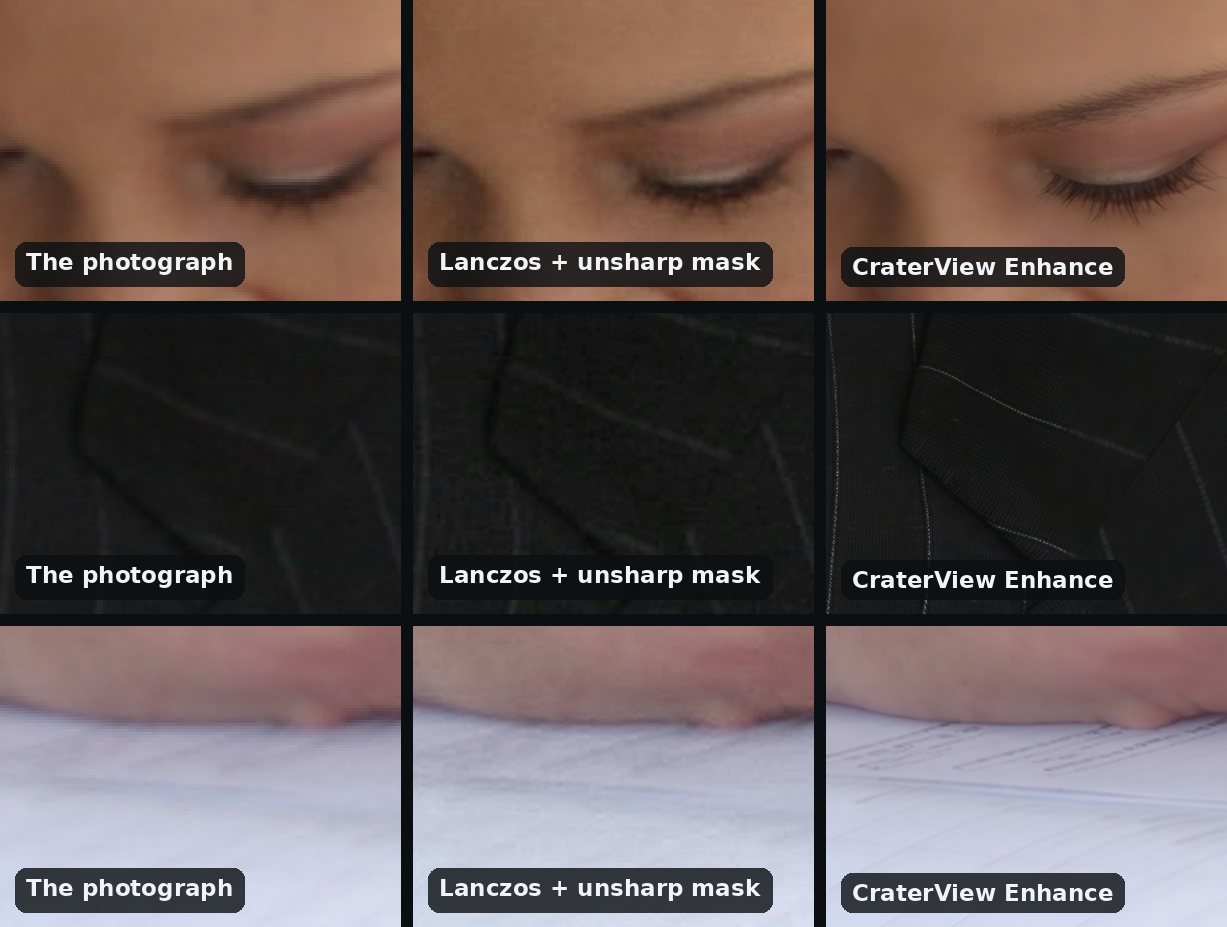
Up close, at the same small window of each: her lowered eyelid gains separate lashes; the groom’s lapel gets crisp pinstripes and the weave of the cloth. The register is the warning. The photograph shows ruled lines and grey smudges of print, and Enhance returns crisp lines and marks shaped like small type. Nobody can read them, because there was nothing there to read.
A frame of up to 10.6 megapixels goes through whole at up to four times, which covers every print in the table. From a 24-megapixel camera, a print is made from part of the frame. For a big print from an event, that is usually the point anyway: one couple, not the whole room.
Soft-proof and sharpen the Enhance result for paper as you would any other file.
Low light
The reception is where the light goes, and a Canon EOS 60D at ISO 12800, 1/250 s and f/2.8 gives grain in every colour. Enhance on its own reads that grain as detail and keeps it as a coarser mottle. Turn on denoise for a frame like this, and set scale to 1 to keep the photograph’s own size.
With denoise on, scale runs from 1 to 2 rather than 1 to 4, and a run works on four times as much of a picture: 42.4 megapixels on paid compute, so the 60D’s whole 18-megapixel frame goes through. Below, the same pixels at the photograph’s own size, each pixel drawn twice, beside the noise reduction and sharpening a raw developer applies:
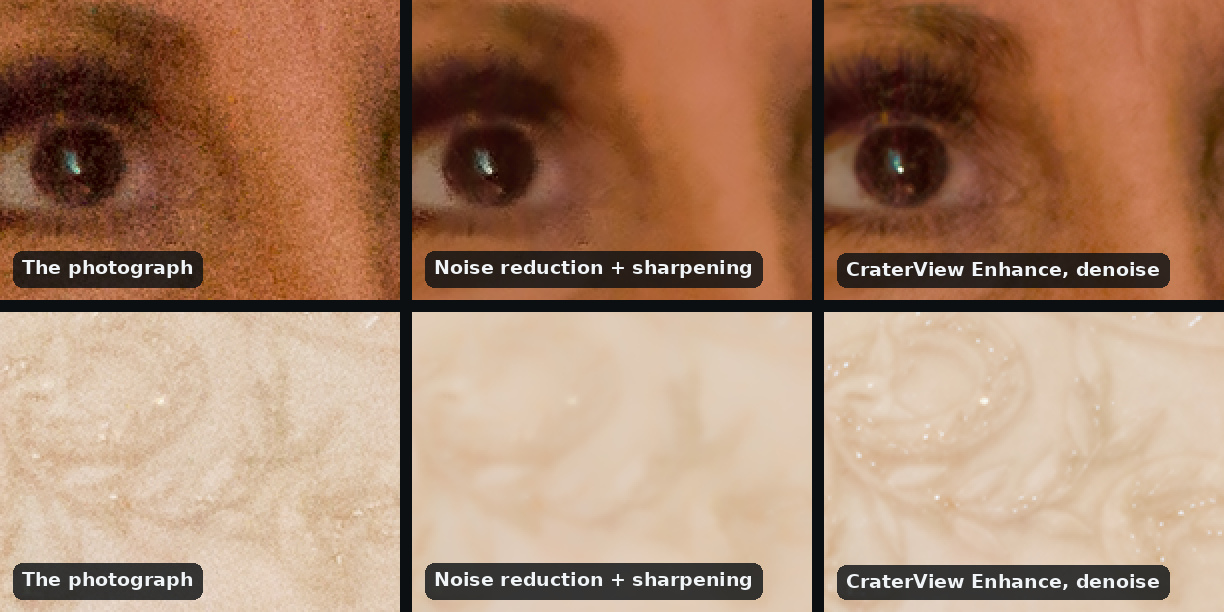
The noise reduction clears the grain and takes the lashes and the lace’s scrolls with it: the skin goes waxy and the pattern flat. Enhance with denoise clears it and keeps both.


The guests’ faces and the rims of his glasses come through clean, from a frame whose grain was heavier still. But denoise redraws details at the finest scale, and it shows in two places:
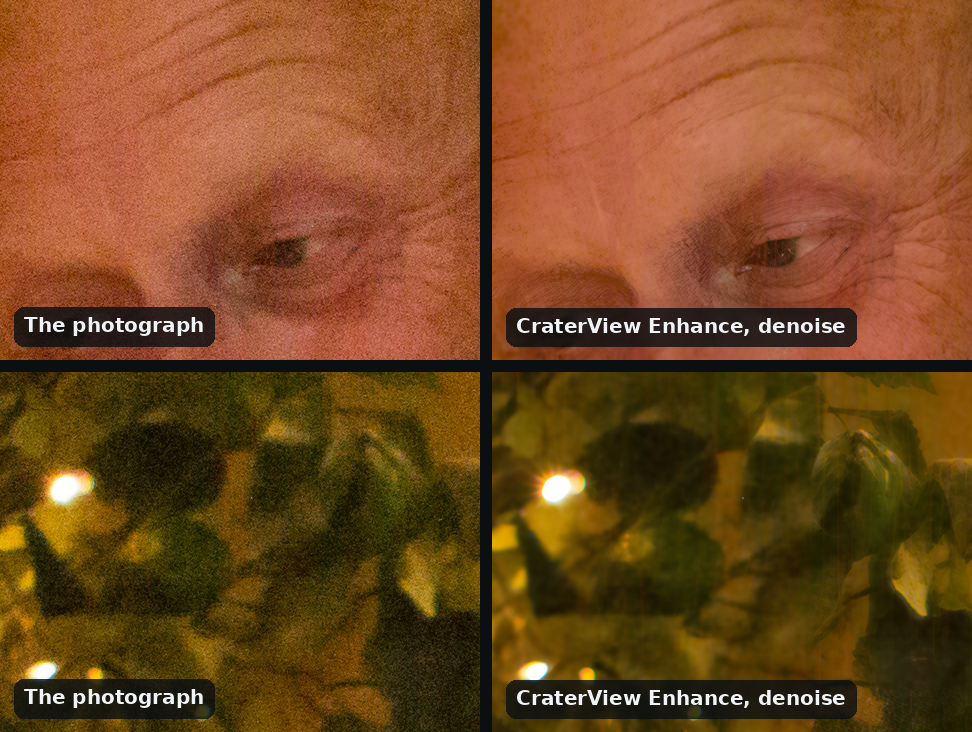
- It draws lines in faces. In the cake-cutting frame for example, the groom’s forehead lines and crow’s feet might come back deeper and more numerous. Compare any portrait a client will study with the original before you deliver it.
- It draws texture into dark, out-of-focus areas. The tree with its fairy lights came back with a streaky, painted grain where the photograph had noise.
The lace’s beads, too, are drawn where the photograph had sparkles lost in grain. Leave denoise off for a photograph without visible noise: on a clean one it redraws the finest texture rather than keeping it.
Denoise
Denoise does only this: it takes the grain out of a photograph, at the photograph’s own size. It redraws the whole picture rather than enlarging it, so people come back as a close likeness, not the same pixels. It works two ways:
- A part at its own pixels. Frame up to about a megapixel with the window, a couple, a face or a table, and it comes back at its own size. Frame more and it comes back reduced to about a megapixel.
- Tiled. Switch on tiled and the part you frame is worked at its own resolution, up to 10.6 megapixels on paid compute: three fifths of the 60D’s frame. The larger the part, the longer the run, up to several minutes.
The same two guests, framed a little under a megapixel:


It is cleaner than Enhance with denoise on skin, shirts and walls, where Enhance leaves a faint mottle and flecks of colour. It also draws more: her lashes and his eyes behind the glasses come back crisp, with creases beside his eyes and lines on his forehead that the photograph doesn’t show.
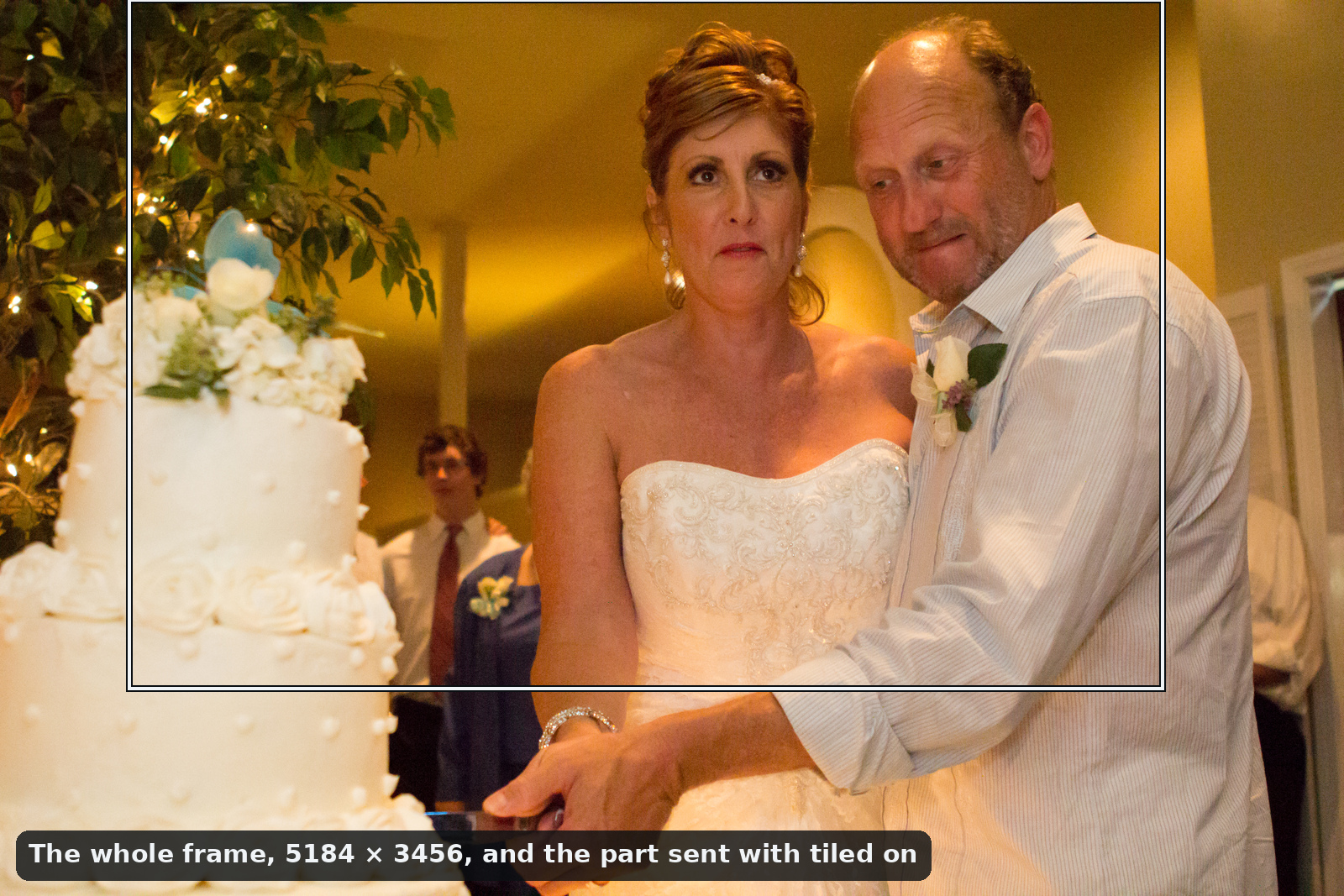
With tiled on, most of the cake-cutting frame went through as one part, at its own resolution:
The eye and the lace from the first figure above, three ways:
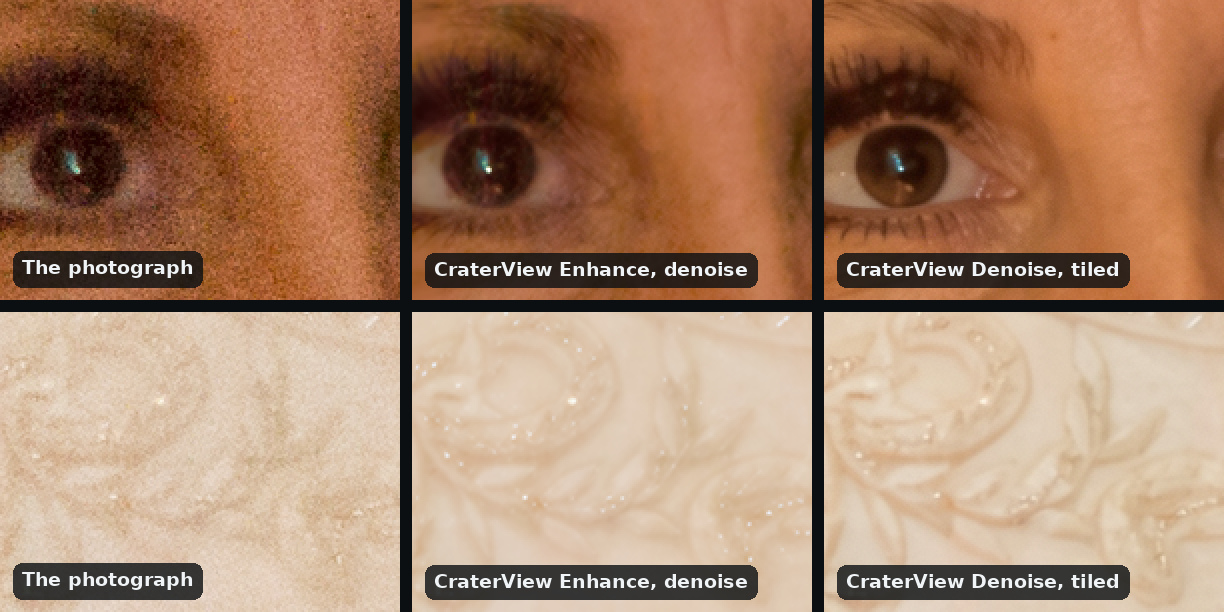
Both clear the grain and keep the lace’s scrolls, and Denoise draws the lashes, the lower ones too, more distinctly. Where it draws more freely is where a client looks:
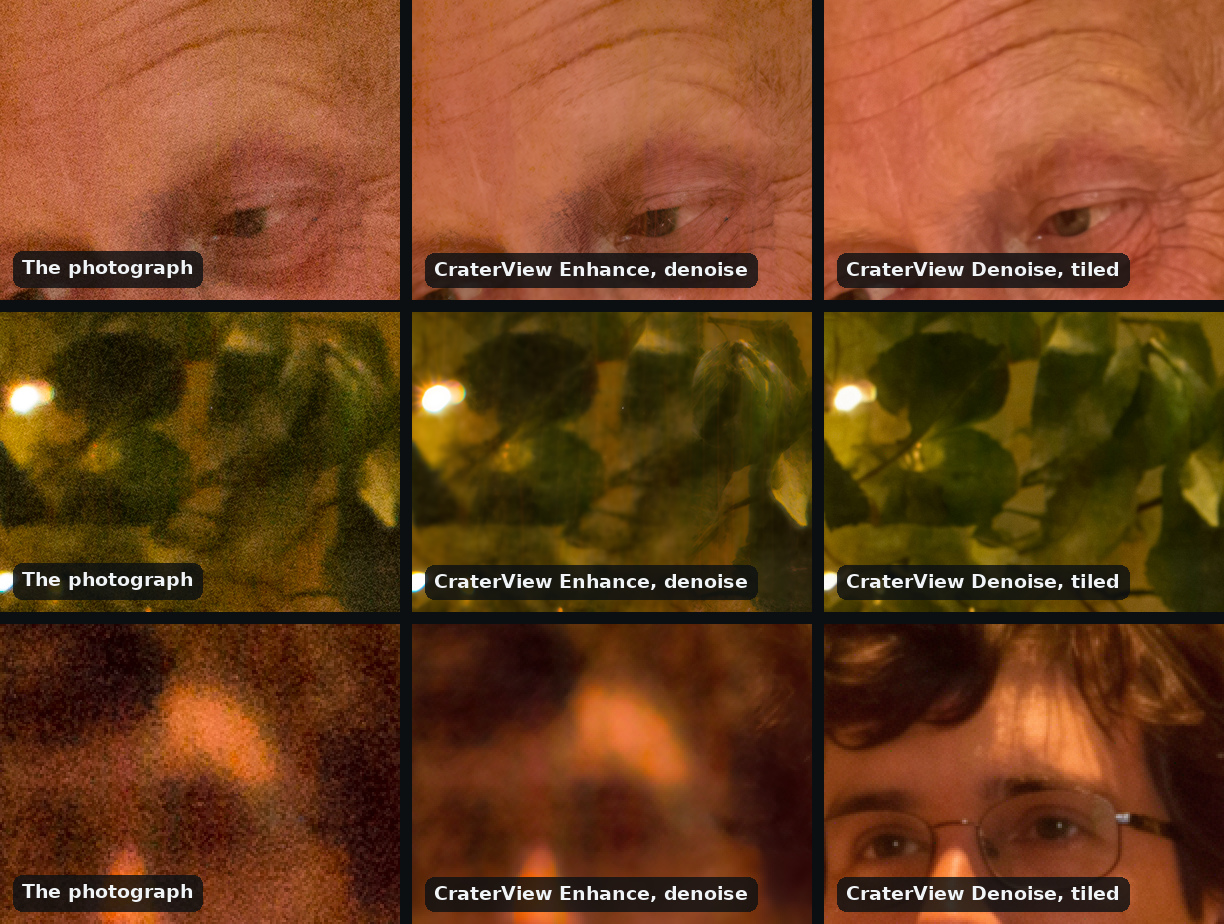
- Lines in faces, as Enhance draws them: the groom’s forehead lines and the creases round his eye come back as deep.
- Focus the lens didn’t give. The tree’s leaves come back with crisp edges rather than Enhance’s streaky texture. And a guest standing out of focus behind the couple, a blur in the photograph, comes back as a sharp face, glasses and all, that the photograph doesn’t hold. Check the background as closely as the faces you meant to show.
Use Enhance with denoise to make the photograph larger as well, or to take the 60D’s whole frame in one run. Use Denoise for the cleanest result at the photograph’s own size: framed at its own pixels for a face or a detail, tiled for most of a frame.
Filters go after Enhance
Enhance reads everything in the file as detail of the scene, including what your edits might have added. Lens correction and low level sensor noise reduction should typically still be your first processing step, but stronger especially artistic filters should go after enhance:
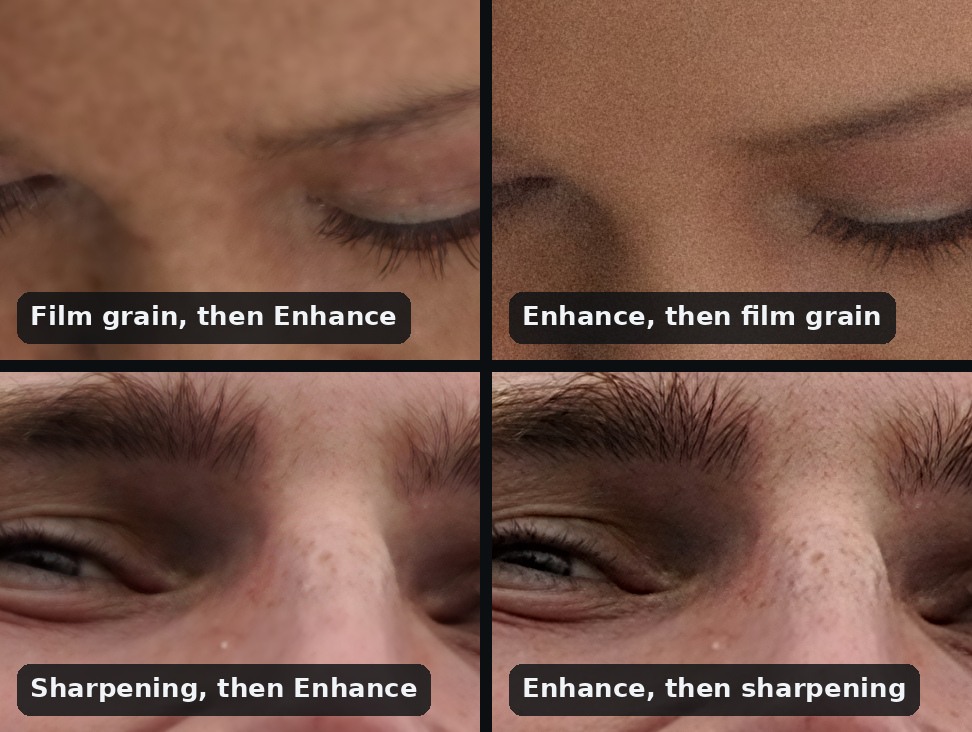
Film grain added first comes back as blotches on the skin; added last, it is grain. Sharpening applied first halos the brows and lashes and lightens the lids; applied last, at the enlarged size, it sharpens what Enhance drew.
- Before Enhance: export 16-bit TIFF or PNG, or JPEG at quality 95 or more. Keep capture sharpening at your developer’s default and colour noise reduction on. At high ISO, skip luminance noise reduction and turn on denoise instead, as above.
- After Enhance: sharpening, clarity, grain, skin retouching and the grade, then output sharpening for screen or paper.
The rest of the catalog
- Small face enhancement redraws faces up to about 48 pixels tall: the back row of a big group, or a guest’s phone photo after an enlargement. A face that small is drawn to fit the photograph rather than recovered, so it isn’t for a face somebody will need to identify.
- Restore repairs and colours an old print: the parents’ wedding photo for the anniversary slideshow. See restoring historical photos.
- Headshot makes a studio-style portrait from a snapshot, for the speaker list at a conference you shot. See the headshot guide.
What Enhance doesn’t do
- Read raw files. Develop in your raw converter and export a TIFF. A 16-bit TIFF is read at 16 bits and comes back as a 16-bit PNG. Let us know if you do need raw support :-)
- Set a noise-reduction strength. Its denoise is simply on or off, and Denoise has no strength to set either.
- Remove motion blur or missed focus. As the class ring shows, it draws onto the blur.
- Adjust exposure, white balance or colour, or retouch. What you send is what you get, larger and with more detail. Nothing is removed from the picture, and nothing is added to it but detail.
- Work on a frame larger than 10.6 megapixels whole, or 42.4 with denoise on. A part of it, at any scale, goes through.
- Keep wide-gamut colour. Detail is rebuilt within sRGB’s range of colours, so the most saturated colours an Adobe RGB or ProPhoto RGB file can hold come back clipped to the edge of sRGB. Everything inside sRGB comes back where it was.
- Keep metadata. A result carries its colour profile and nothing else: no capture date, camera, copyright, caption or keywords. Copy the metadata to the result if you need it in your catalogue.
See the formats guide for more info on depth, colour profiles and gamut.
Before you deliver
- Compare every face at full size against the original, those in the background too: age, lines, teeth, eyes.
- Check anything specific to the people in it: rings, crests, insignia, tattoos, lettering. Where the photograph doesn’t resolve it, Enhance and Denoise draw something that looks right and may not be.
- Keep the original beside the result, and tell the client which pictures were enhanced or denoised.
Each result here is one run, and each tool’s price is on its card in the app.
How these were made
- The photographs are from Wikimedia Commons, used as published there and credited under each. Each was enhanced or denoised in October 2026, returned as a PNG, with the settings in its caption; Denoise ran at its default settings, with tiled on where its caption says.
- The crop and print figures show each crop three ways: the photograph’s own pixels, repeated; the enlargement and sharpening any editor makes, a Lanczos resize followed by an unsharp mask (amount 100%, radius one pixel of the photograph); and Enhance’s result, never resized. The low-light figures show the same pixels of the photograph and of each result, all at the photograph’s own size.
- The noise reduction and sharpening in the low-light figure stand in for a raw developer’s, applied to the photograph as published: colour noise reduction, luminance noise reduction (non-local means, a conventional method rather than a learned one) at the lowest of three strengths that cleared the grain, then capture sharpening, an unsharp mask of radius 1 and amount 40%.
- The filter figure applies each filter to the crop before Enhance, and to the unfiltered result after it: grain at the result’s own pixels, and an unsharp mask of amount 1.5 with its radius scaled by the enlargement.
Try it on your own file
No signup and no card — a workspace opens for your browser the moment you do.
Open Web AppMore guides

