Restore: AI photo restoration for old, damaged prints
Repair an old photo. Restore removes tears, creases, scratches, dust and grain and corrects faded colour, and returns a black-and-white photo in colour or keeps it black and white.
No sign-up and no card — a workspace opens in your browser the moment you arrive.
A print in a shoebox has been through decades of handling: a fold, a torn corner, white specks where the emulsion flaked, dyes drifted to amber. A scanner records all of that faithfully. Restore takes away what the years added and gives you back the picture of the day. Scan the print, drop the scan in, and nothing needs retouching by hand.


What it does
Restore repairs the whole photo at once, and returns it at its own size: it is a restorer, not an enlarger. The colour it puts back is usually right about wood, sky and wool:


A scan of 300 to 600 dpi is plenty; a higher setting records more of the paper’s texture without giving the repair anything more to work with. Send the TIFF your scanner software saves, or a PNG or a JPEG. A 16-bit scan keeps all its tones through the repair, and a TIFF comes back as a PNG, which holds them.
Ways to run it
In colour, or black and white
With monochrome off, a black-and-white photo comes back in colour. Turn it on to keep it black and white, with a gentler repair. When the colour is not yours to guess — a uniform, a flag, a car — don’t ask for it.


Tell it what the photo can’t show
A black-and-white photo holds no colour to restore, so Restore draws a plausible one. Write one sentence in context about what you know of this photo: who is in it, their age, the colours they wore, where and when it was taken. The repair follows it. Describe the photo rather than naming someone famous, because a famous name pulls the result towards that person’s best-known pictures. Below, left to right: the original, the default, a context naming him, and a context describing him.
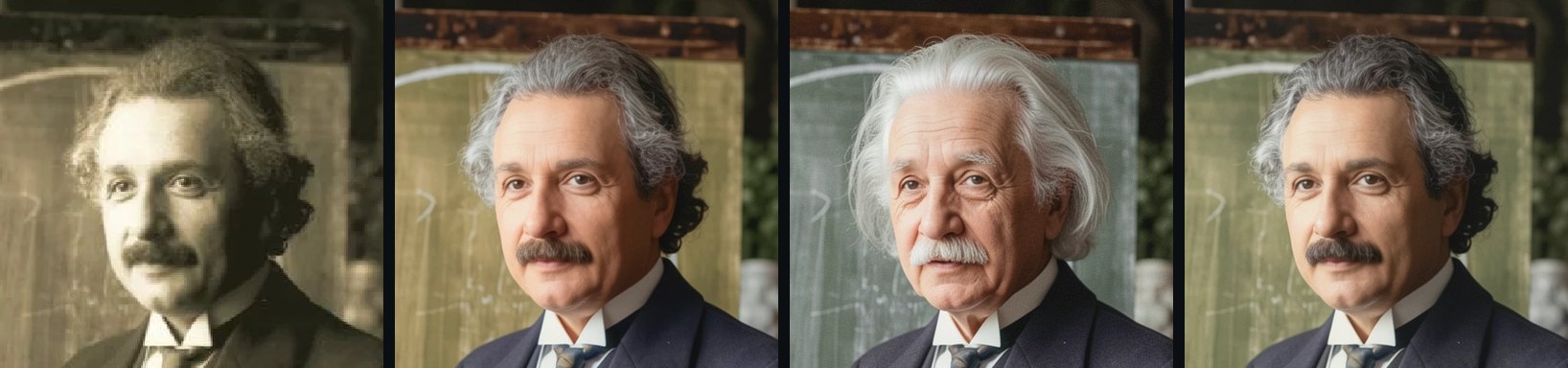
Skin tone is where this matters most. Colourizing a black-and-white photo can lighten darker skin, and a sentence stating the subject’s skin tone corrects it. The repair follows the whole sentence, so write only what you know, and compare the background with the scan.
A different repair
The seed setting picks one repair out of the many Restore could make. The same photo and seed always give the same result, and a different seed gives a different repair, which is worth trying on a photo that matters.
Very small originals: Enhance first
A scan a few hundred pixels across gives Restore little to repair from. Enlarge it with Enhance first, then restore the result. It is two runs, so only chain them when the original is genuinely small.


What to check
- Faces and hands. The repair repaints the whole photo, and a face that is small in the frame can shift a little. Compare the two at the size you will use the photo.
- Writing and fine pattern. A caption on the print, a shop sign, a check shirt: these are where a repair is most likely to show.
- Colours that carry meaning. Uniforms, insignia, flags and vehicles are drawn, not recovered.
- Keep the original. Say that a picture was restored, and that its colour is a rendering.
From your own code
Restore is on the HTTP API, with clients for Python and TypeScript. Below every run in the web app, Equivalent HTTP API calls shows the same request in curl, Python and TypeScript, ready to copy. Your first API call, in three requests walks through getting a key and the three requests a job takes.
Try it on your own file
No sign-up and no card — a workspace opens in your browser the moment you arrive.
Open Restore in the web appGuides that use Restore

